In this post I want to cover something very simple: how can I run an AI model locally, and what are the benefits of doing so?
The first thing we need to do is check whether we have the necessary requirements. To do that, we need to understand what computational resources models demand in order to run.
- A computer: Obvious — no further explanation needed.
- Storage: This is essential; a local model takes up space. If we can’t store it, we can’t use it. This can range from a few gigabytes to hundreds of gigabytes.
- Compute power (CPU and/or GPU): Models are typically optimized to run on graphics cards, especially NVIDIA ones, but that doesn’t mean they can’t run on a standard CPU or an older graphics card. The key here is matching the right model to our hardware. I’ll share a tool for that further below.
- RAM: As we chat with our LLM or LMM, we build up context (the conversation). As that context grows, the cost of processing it increases more than linearly and gets stored in the computer’s temporary memory — so more RAM means better performance.
All of these factors combine to determine performance, which we typically measure in tokens/second: the number of “words” (in quotes, because a word isn’t exactly a token) our model can predict each second.
There are many ways to run LLMs or LMMs locally. In this article I’ll walk through a very visual and simple one, and I’ll mention other alternatives so you can experiment on your own.
Getting Started with LM Studio
Let’s start with a very simple program: LM Studio. It’s a graphical app that lets you download models, chat with them, and experiment without writing a single line of code — and with the freedom to explore without breaking anything.
It’s currently one of the tools I use to experiment with Agents without spending money on cloud provider API keys. I run it on a MacBook Air M4 with 16 GB RAM without any issues for compatible models.
Steps to Install LM Studio
1. Download and install the LM Studio app from lmstudio.ai. Once installed, you should see a window like this:
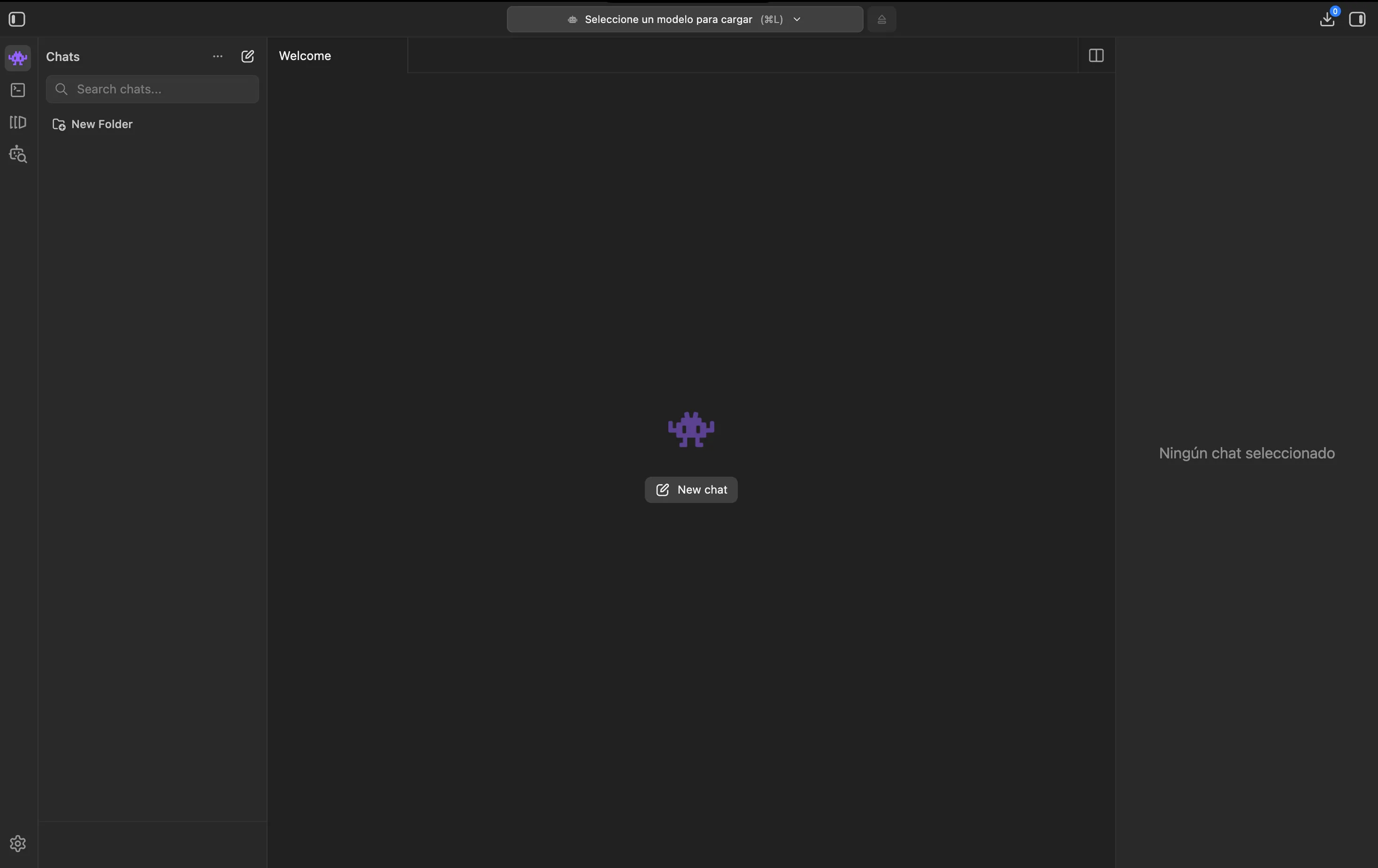
Image 1. LM Studio
2. Let’s install our first local model. Go to the Model search tab (the last icon with the robot). You’ll see a window like this:
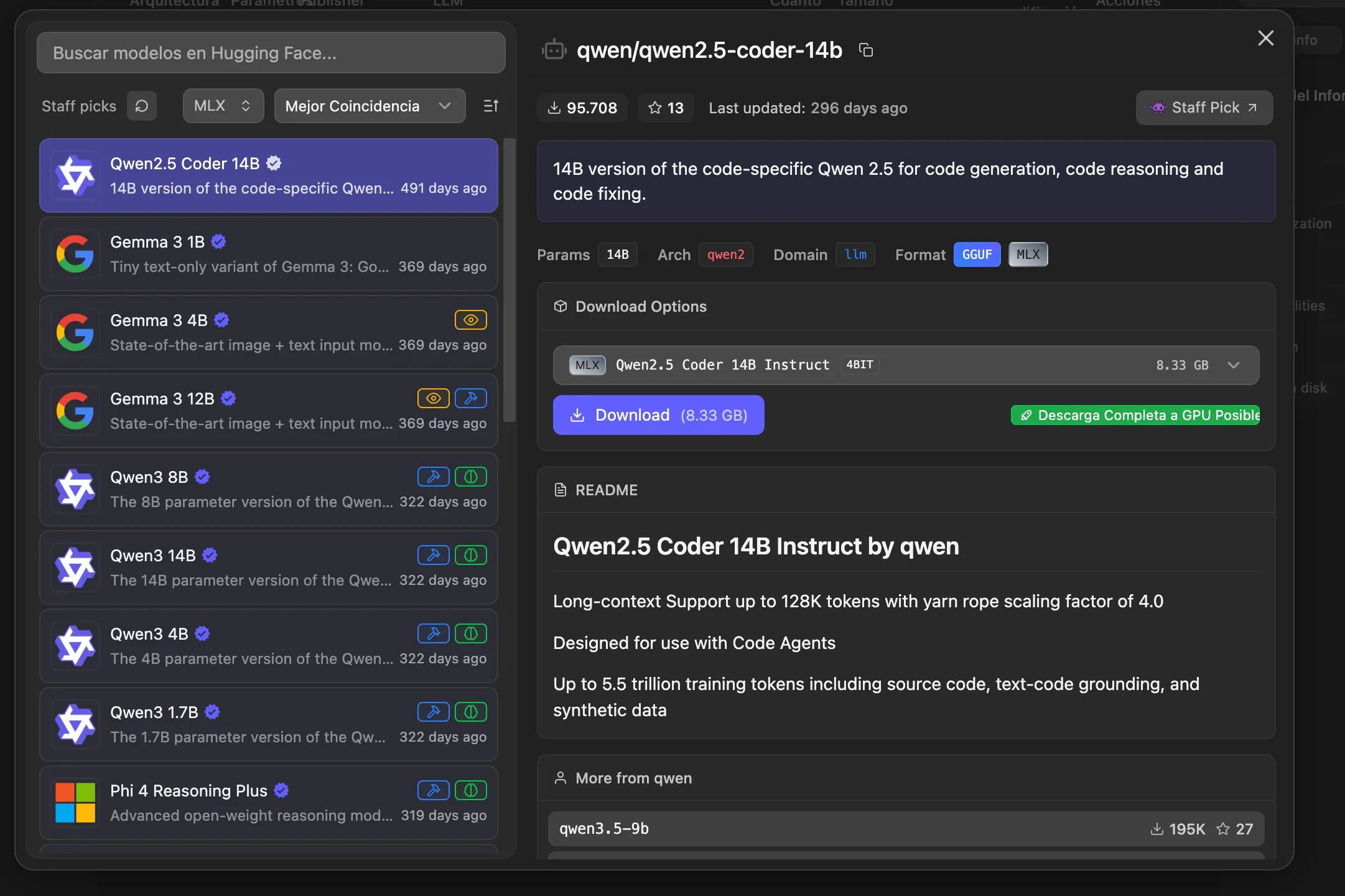
Image 2. Model search in LM Studio
Something great happens here in this app. It visually lists all the models compatible with your hardware. It also tells you whether models support tools (hammer icon), thinking (brain icon), or can even accept files, images, or audio (eye icon).
A few things to keep in mind in this section:
- The models shown are open-source — don’t expect to find an Anthropic model here, for example.
- More parameters (denoted by the letter B, for billions of parameters) means a smarter model, but also higher storage and RAM consumption.
- The ideal choice is a model that fits your use case — it doesn’t need to be the biggest one. Keep in mind that training parameters differ between models. Some models like Phi are focused on STEM, while others like Gemma or Qwen are for general use.
3. Download a small model to start and test (I recommend Qwen 3.5 2B, which is only about 2.2 GB).
4. Once the download is complete, let’s load the model and start chatting. First, go to the chat tab. Then navigate to the top of the screen where you’ll find the “Load model” option. Select the desired model and wait for it to load. That’s it — you can start chatting right away. It really is that simple.
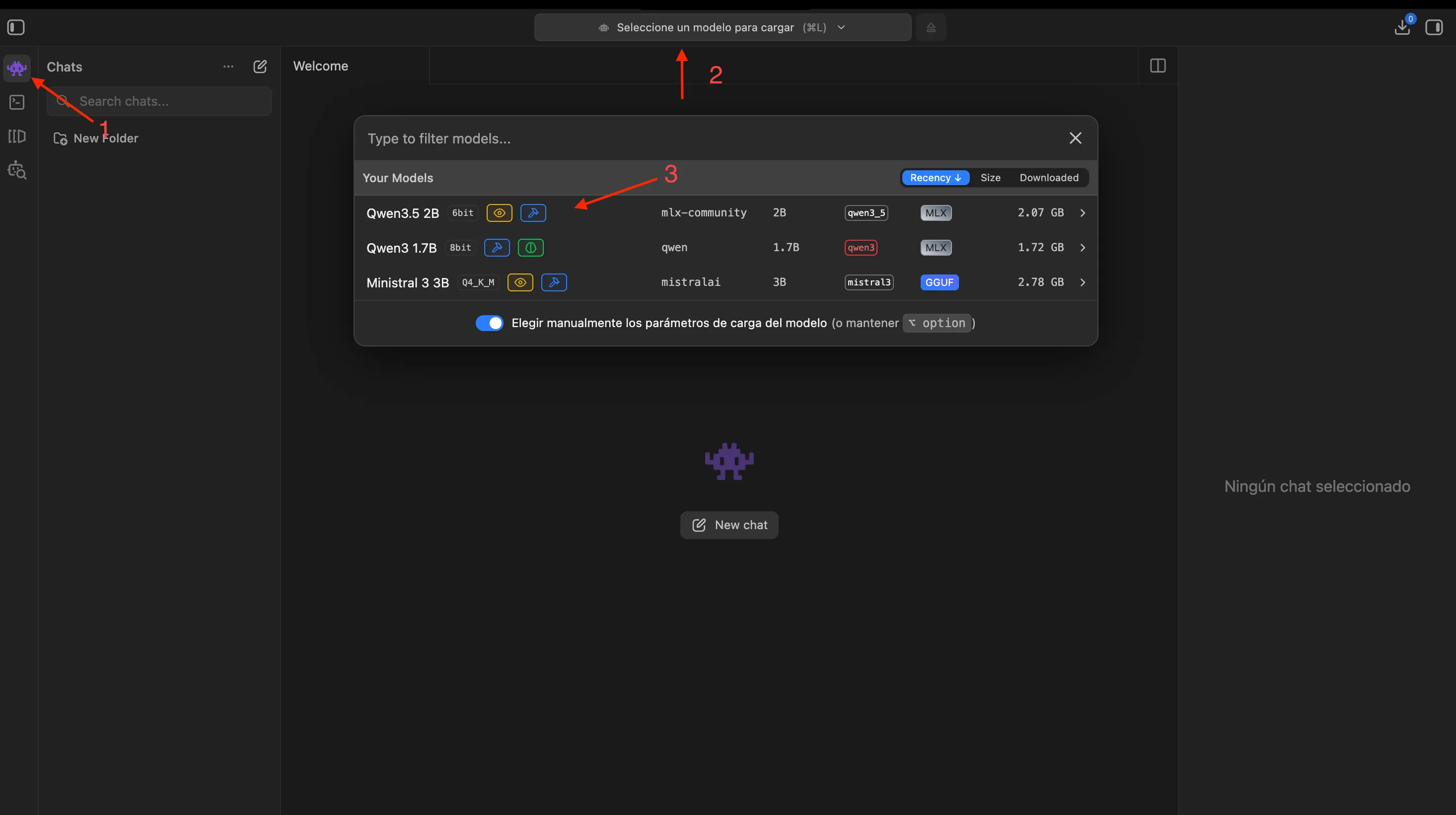
Image 3. Steps to load a model in LM Studio
5. Once you’re done testing, remember to unload the model to free up memory.
Notes:
- This program offers a wide range of features with many parameters for interacting with models. I encourage you to explore them to deepen your understanding of AI.
- If you want to check model compatibility with your hardware without using LM Studio, I highly recommend this excellent tool: canirun.ai.
- Alternatively, you can install models without a graphical interface using the classic ollama.
Why Run a Local LLM?
In my case, beyond learning, it has allowed me to set up a small server to test agent applications and observe their responses. I’ve created a repository where I share my knowledge on agent and multi-agent orchestration. If you’re interested, you can check it out here: multi-agent-book-projects.
The most notable benefits of running a local LLM include:
- Zero cost.
- Complete privacy — nothing leaves your machine.
- Offline operation — no internet connection required.
- The ability to build more powerful capabilities with agents for automation.
I encourage you to explore this fascinating world, which is undeniably extremely addictive. As a good friend of mine says: AI = Insomnia + Anxiety — but in the best possible way.